Docs · Guides · Power BI
Power BI
Load PartLogic stock into Power BI Desktop with Power Query. Power BI uses the same connector engine as Excel: you call the Stock endpoint with an X-API-Key header, expand the JSON rows, then build visuals on a blank report.
GET …/api/stock (full URL)Overview
The end-to-end flow: create an API key in the portal, use a Power Query blank query with a short M script that sends X-API-Key, then add visuals on a new report page. Do not use the Web / Web API picker — current Power BI Desktop does not expose a header field there.
Portal → API key (devices scoped)
         ↓
Power BI Desktop → Get data → Blank query → M (Web.Contents + X-API-Key)
         ↓
Flat table (SKU, Physical, Location, …)
         ↓
Report visuals (table, bar chart, KPI cards)
Prerequisites
- Power BI Desktop (Windows). Sign in is optional for local development; you need a Power BI licence only when publishing to the service.
- A PartLogic API key with access to the devices whose stock you want in the report.
- Outbound HTTPS access to the Stock API host documented in the API Reference.
PartLogic Stock API — /api/stock
Get an API key
If you already have a key, skip to Connect in Power BI. Otherwise follow the Portal API key guide (or open Integrations):
- Sign in to the portal → Integrations → New API Key.
- Name the key, select the devices to include, and set optional expiry.
- Copy the secret immediately — it is shown once. Store it in a password manager; you will paste it into Power Query (or a parameter) in the next section.
Stock returned by GET /api/stock is filtered to the devices linked to your key. If the query succeeds but the table is empty, check device selection on the key.
Connect (blank query)
Do not use Get data → Web
In current Power BI Desktop, Web opens the Web API connector: URL plus Authentication kind only. There is no Advanced option and no place for X-API-Key. Anonymous there always fails with Invalid credentials. PartLogic needs the key in an HTTP header — use Blank query and the M script below instead (same fix for Fabric dataflows).
Start from a blank report (File → New). You need the Power Query Editor for about two minutes.
Quick start (paste key in script)
- Home → Get data → Blank query (in the same menu as Web — do not pick Web).
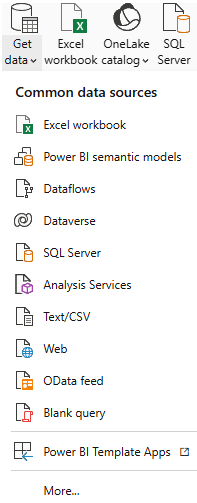
Choose Blank query, not Web. - Power BI opens an M code editor — either in the Get Data (Power Query) dialog (with Blank query selected on the left) or in the Power Query Editor after you continue. Replace the default
let … Source = "" …block with the script below. If you land in the Power Query Editor first, use Home → Advanced Editor instead.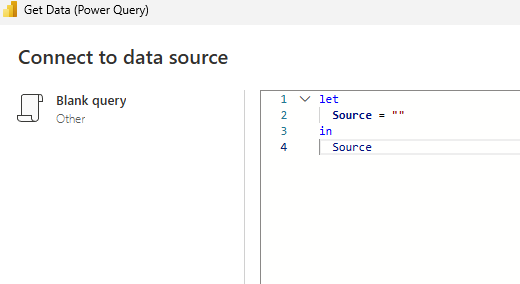
Paste the full script over the default Source = ""template, then continue. - Change
PASTE_YOUR_API_KEY_HEREin the script to your real key (keep the quotes). - Click Create or Done, then Next if the wizard continues. If Power BI asks about privacy / access to the web, approve access to the PartLogic API host.
- You should see a preview table with columns such as
SKUandPhysical. Rename the query (for examplePartLogic StockorStock List) in the left Queries pane.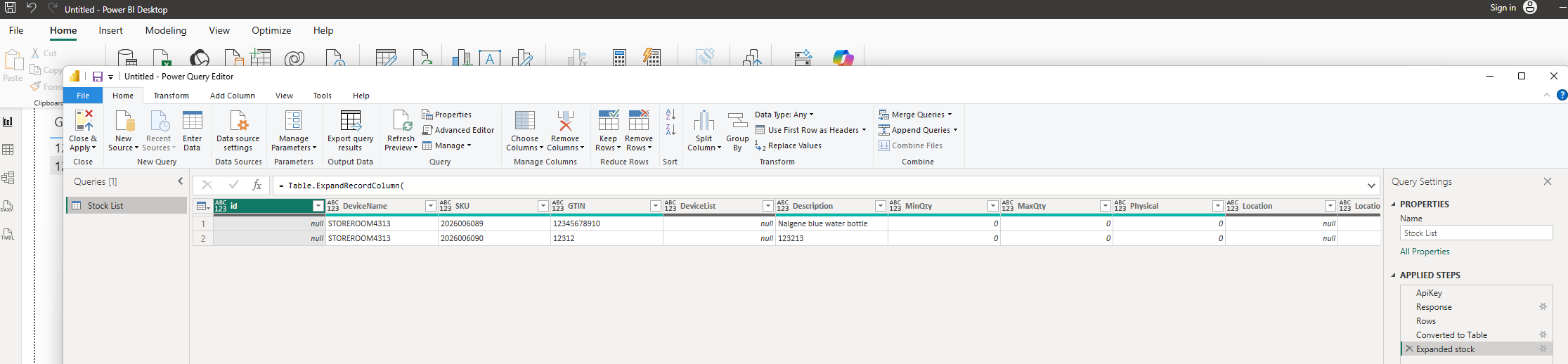
Applied steps should include ApiKey, Response, Rows, and Expanded stock — then Close & Apply. - Home → Close & Apply.
let
    ApiKey = "PASTE_YOUR_API_KEY_HERE",
    Response = Json.Document(
        Web.Contents(
            "https://partlogic-api-stock-dwbbcthkhfb0ceca.ukwest-01.azurewebsites.net/api/stock",
            [Headers = [#"X-API-Key" = ApiKey]]
        )
    ),
    Rows =
        if Value.Is(Response, type list) then Response
        else if Record.HasFields(Response, "rows") then Response[rows]
        else error "Unexpected JSON from /api/stock",
    #"Converted to Table" = Table.FromList(Rows, Splitter.SplitByNothing(), null, null, ExtraValues.Error),
    #"Expanded stock" = Table.ExpandRecordColumn(
        #"Converted to Table",
        "Column1",
        {"id", "DeviceName", "SKU", "GTIN", "DeviceList", "Description", "MinQty", "MaxQty", "Physical", "Location", "LocationAlias"},
        {"id", "DeviceName", "SKU", "GTIN", "DeviceList", "Description", "MinQty", "MaxQty", "Physical", "Location", "LocationAlias"}
    )
in
    #"Expanded stock"
Production: store the key in a parameter
After the quick start works, move the key out of the script: Home → Manage Parameters → New → name PartLogicApiKey (Text) → paste your key. Then use this script (replace the quick-start script in Advanced Editor):
let
    ApiKey = PartLogicApiKey,
    Response = Json.Document(
        Web.Contents(
            "https://partlogic-api-stock-dwbbcthkhfb0ceca.ukwest-01.azurewebsites.net/api/stock",
            [Headers = [#"X-API-Key" = ApiKey]]
        )
    ),
    Rows =
        if Value.Is(Response, type list) then Response
        else if Record.HasFields(Response, "rows") then Response[rows]
        else error "Unexpected JSON from /api/stock",
    #"Converted to Table" = Table.FromList(Rows, Splitter.SplitByNothing(), null, null, ExtraValues.Error),
    #"Expanded stock" = Table.ExpandRecordColumn(
        #"Converted to Table",
        "Column1",
        {"id", "DeviceName", "SKU", "GTIN", "DeviceList", "Description", "MinQty", "MaxQty", "Physical", "Location", "LocationAlias"},
        {"id", "DeviceName", "SKU", "GTIN", "DeviceList", "Description", "MinQty", "MaxQty", "Physical", "Location", "LocationAlias"}
    )
in
    #"Expanded stock"
Endpoint used by both scripts: PartLogic Stock API — /api/stock. PartLogic does not accept the key as a query parameter (?X-API-Key=...).
Excel only (legacy Web dialog)
Excel's Data → From Web → Advanced still has HTTP request header parameters. Power BI Desktop's Web menu item does not — use blank query here. See the API Reference for Excel steps.
Shape the data
If you used the M script above, shaping is already done — skip to Build a report. The scripts handle both a raw JSON array and an envelope { "rows": [ ... ] }. Manual steps below apply only if you connected another way.
If the root is a List
- With the list selected: Convert → Into Table.
- Click the expand icon on
Column1→ select all fields → OK. Uncheck "Use original column name as prefix" if offered. - Set appropriate types (Transform → Detect Data Type or set
Physical,MinQty,MaxQtyto Whole Number).
If the root is a Record with rows
- Click into the
rowsfield (or use Record tools → expand). - Convert → Into Table, then expand
Column1as above.
Rename the query to PartLogic Stock, then Home → Close & Apply.
Useful calculated column (optional)
Flag lines below minimum stock for conditional formatting or filters:
[Physical] < [MinQty]
Build a report
After Close & Apply, the PartLogic Stock table appears in the Fields pane. On a blank canvas page:
- Table — Drag
SKU,Description,Location,Physical,MinQty. Sort byPhysicalascending to surface low stock. - Clustered bar chart — Axis:
SKUorDescription; Values: sum ofPhysical. Add aLocationslicer if you have multiple sites. - Card — Total units:
SUM(Physical). Optional second card: count of rows wherePhysical < MinQtyusing a measure or theBelowMincolumn. - Conditional formatting — On the table's
Physicalcolumn, format by rules (e.g. red when belowMinQty).
Column definitions (GTIN, DeviceName, LocationAlias, etc.) are listed in the glossary and OpenAPI spec.
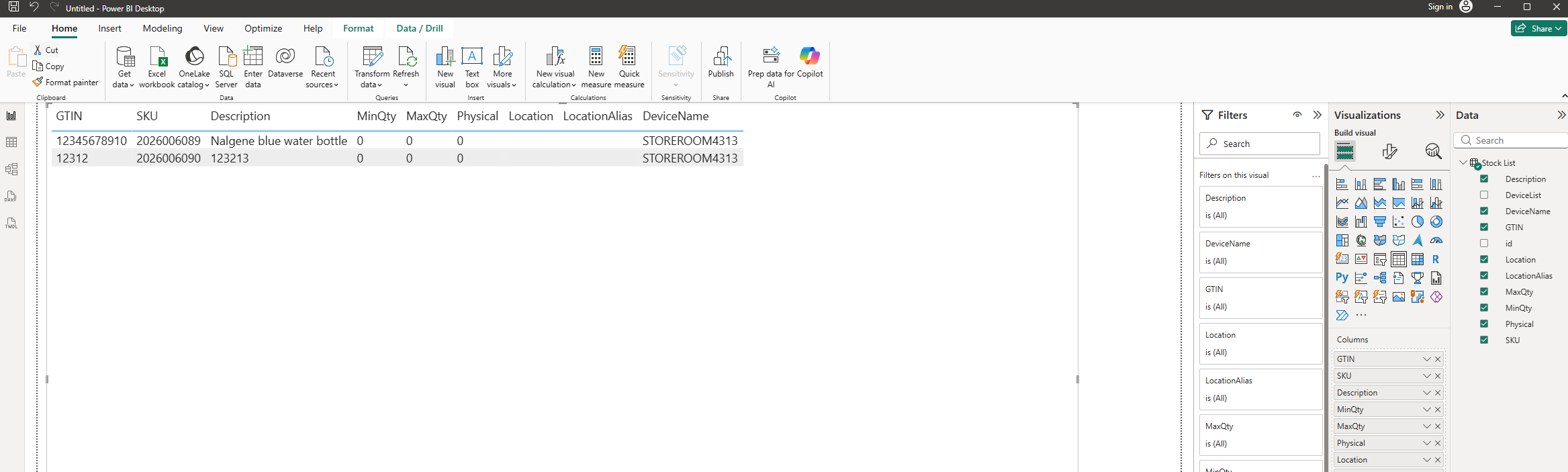
Location or DeviceName when you have more rows.Refresh
- Desktop: Home → Refresh re-runs the query against the live API.
- Privacy levels: If refresh fails with a formula firewall error, open File → Options and settings → Options → Privacy and set both PartLogic and your organisation to Organizational, or combine data in Power Query before merging with other sources.
- Power BI Service: After publish, scheduled refresh needs a gateway if the dataset uses
Web.Contentsto a custom URL. Configure the data source on the gateway with the sameX-API-Keyheader (or parameter prompt). DirectQuery is not required for typical stock snapshots — Import mode with a schedule is usually enough.
Troubleshooting
| Symptom | Likely cause |
|---|---|
| Invalid credentials on Web API (URL + Authentication kind only) | Wrong connector — Get data → Blank query and the M script in Connect. Do not use Web with Anonymous. |
| No Advanced option under Web | Expected in current Power BI Desktop — the Web menu item is Web API only. Use blank query instead. |
| 401 or "Access denied" in Power Query | Missing header, typo in X-API-Key, or expired key — create a new key in Integrations. |
| Empty table after successful load | API key has no devices selected, or those devices have no stock rows. |
| Cannot expand / single column of records | You are still on the list step — use Into Table then expand Column1, or use the M example above. |
Envelope with rows not handled | Drill into rows before converting to table, or use the parameterised M script. |
| Refresh works locally but not in the service | Gateway credentials or API key not configured on the published dataset data source. |
Full status codes and header rules: API Reference.
Need help?
For integration support, see integration support or contact us. Related guides: Google Sheets, Zapier.